 EveryCafe
EVERYCAFE MANAGER
EveryCafe PlayStation Integration User Guide
With EveryCafe Manager, you can pair PlayStation devices with your desks, automatically wake a console when a session starts and put it into rest mode when the session ends.
Important: EveryCafe cannot turn on a PlayStation that is completely powered off and cannot fully power off a PlayStation that is running. The system can wake a PlayStation from rest mode and put a running PlayStation into rest mode.
1. Prepare the PlayStation Settings
Before connecting to EveryCafe, Remote Play and network wake features must be enabled on the PS5.
- Open Settings → System → Remote Play (Remote Play) on the PS5.
- Enable Enable Remote Play.
 EveryCafe PlayStation Integration User Guide
- Open Settings → System → Power Saving → Features Available in Rest Mode.
 EveryCafe PlayStation Integration User Guide
- Enable Stay Connected to the Internet.
- Enable Enable Turning On PS5 from Network.
 EveryCafe PlayStation Integration User Guide
- Restart the PS5.
If the PlayStation is completely shut down or loses power, EveryCafe cannot wake it. For this reason, leave PlayStation devices in rest mode when they are not being used.
Prepare Your PlayStation Desks
Before starting PlayStation management, make sure you have created as many PlayStation desks as you need in EveryCafe Manager. During device pairing you will need to specify which desk each PlayStation belongs to.
2. Connect Your PlayStation Account
- Open Tools → Options → PlayStation in EveryCafe Manager.
- Open the Manage Accounts tab.
- Press Add New PlayStation Account.
- Sign in to your PlayStation account on the Sony page that opens.
- After sign-in is complete, return to EveryCafe Manager.
This account step does not have to be completed in advance. You can go directly to step 3 and add a PlayStation account while connecting the device.
 EveryCafe PlayStation Integration User Guide
If the account is not linked automatically, copy the remoteplay link produced after sign-in and paste it into the Manual Method field in EveryCafe Manager.
You can add a different Sony account for each PlayStation and edit the names those accounts display inside EveryCafe.
3. Find the PlayStation on the Network
- Open the Connect New Device tab.
- Press Scan Network.
- Select the PlayStation you want to connect from the list.
- Press Connect Device.
 EveryCafe PlayStation Integration User Guide
Select the PlayStation account that will be used for the device and continue. You can also connect a new PlayStation account at this stage.
 EveryCafe PlayStation Integration User Guide
For the PlayStation to be discovered, the PlayStation and the computer running EveryCafe Manager must be on the same local network.
4. Pair the Console
After the PlayStation is found, a one-time pairing must be completed between the console and EveryCafe.
- On the PS5, open Settings → System → Remote Play → Link Device.
- Take note of the 8-digit temporary PIN displayed on the screen.
- Enter the PIN in the corresponding field in EveryCafe Manager.
- Press Pair Console.
 EveryCafe PlayStation Integration User Guide
 EveryCafe PlayStation Integration User Guide
The PIN is valid only for a short time. If it expires, generate a new PIN on the PlayStation and repeat the pairing process.
5. Select the PlayStation Desk
After console pairing is complete, select the PlayStation desk that will use the device and save the desk mapping.
We recommend pairing one PlayStation device with only one desk at a time. You can later change or remove the desk mapping from Connected Devices.
 EveryCafe PlayStation Integration User Guide
Automatic Operation
After setup and desk pairing are complete, PlayStation management works automatically:
When a session starts: if the PlayStation is in rest mode, it is automatically woken.
When a session is closed: a running PlayStation is put into rest mode.
When session time expires: a running PlayStation is put into rest mode.
If the PlayStation is already running: the session continues normally.
If the PlayStation is already in rest mode: an unnecessary rest-mode command is not sent.
If there is a PlayStation connection problem: EveryCafe session start, session close and payment operations are not blocked.
Device and Account Management
Connected Devices
From the Connected Devices tab you can:
- view the current status of the device,
- change the desk assigned to the device,
- remove the desk mapping,
- remove the device's EveryCafe connection.
 EveryCafe PlayStation Integration User Guide
Manage Accounts
From the Manage Accounts tab you can:
- add a new PlayStation account,
- change the name displayed for the account inside EveryCafe,
- remove an account that is no longer used.
Note: removing a PlayStation account does not automatically remove the connected device or desk mapping. Use Connected Devices to remove the device connection.
Send Commands to PlayStation
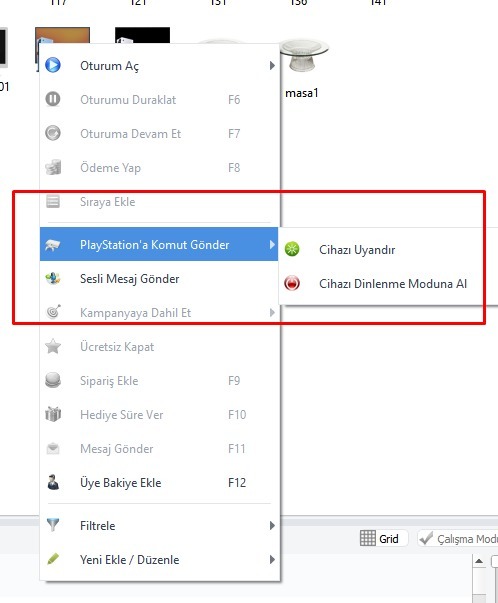
You can send commands directly to your PlayStation devices from EveryCafe Manager.
To do this, right-click the relevant PlayStation desk and use the “Send Command to PlayStation” option from the menu that opens.
You can send the following commands from this section:
- Wake Device: wakes the PlayStation remotely.
- Put Device into Rest Mode: remotely puts the PlayStation into rest mode.
 EveryCafe PlayStation Integration User Guide
How to Control Your TV Together with PlayStation
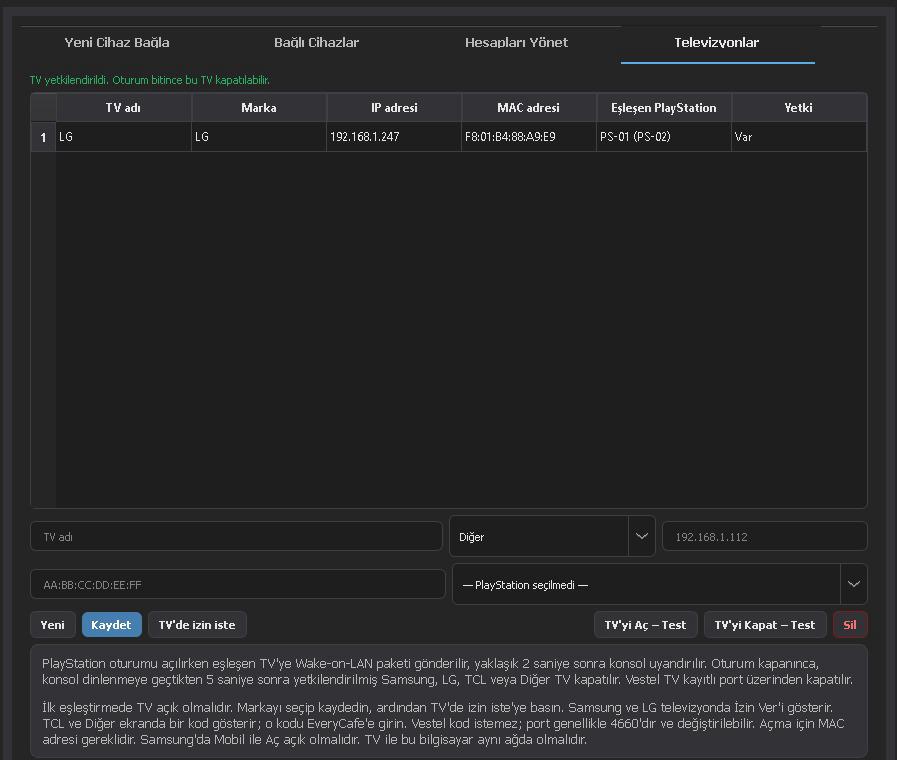
With EveryCafe, you can have the television paired with your PlayStation turn on automatically when you start the PlayStation.
To configure this:
- Disable HDMI-CEC in your television settings.
- Enable Wake-on-LAN on your television.
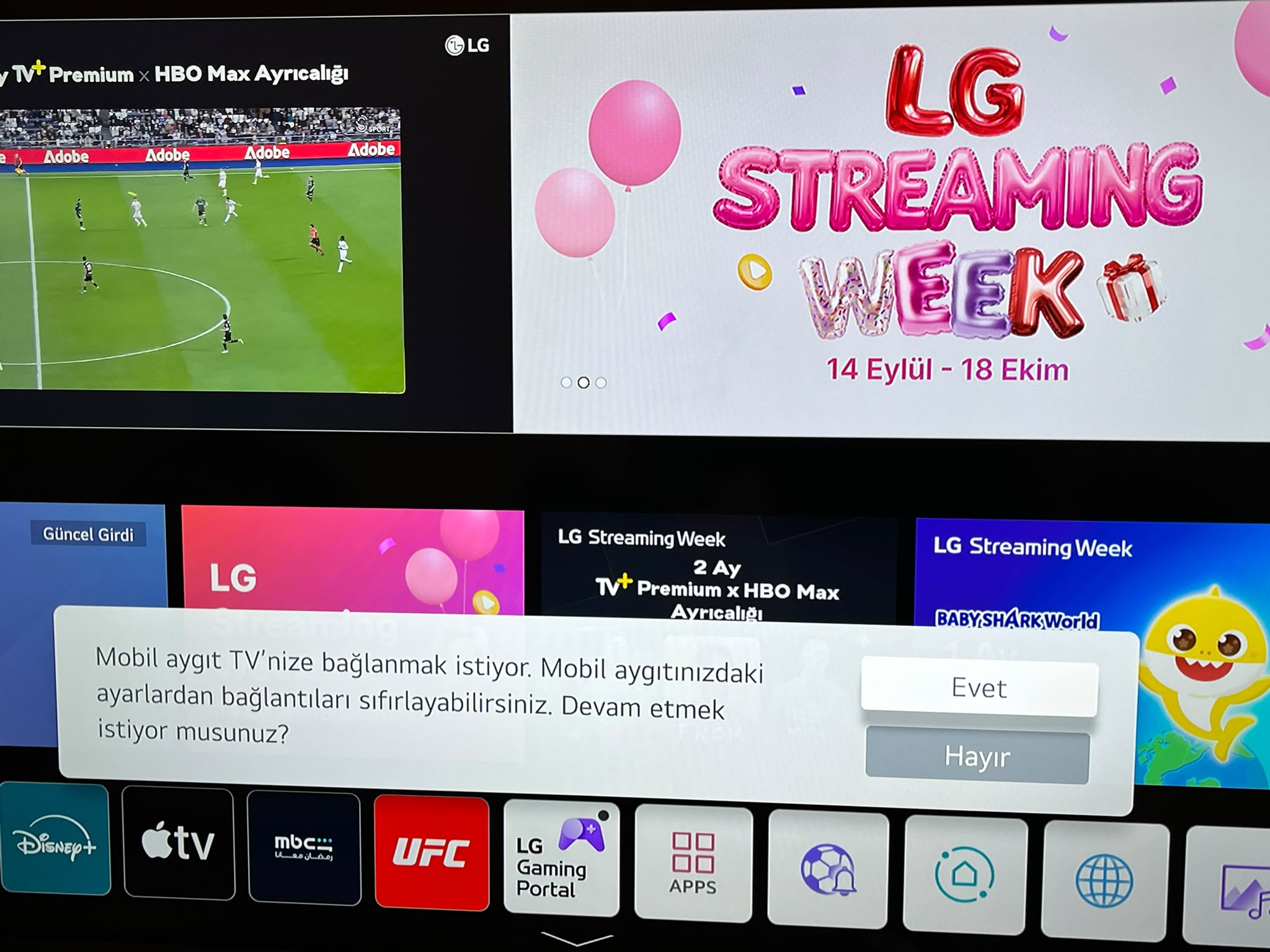
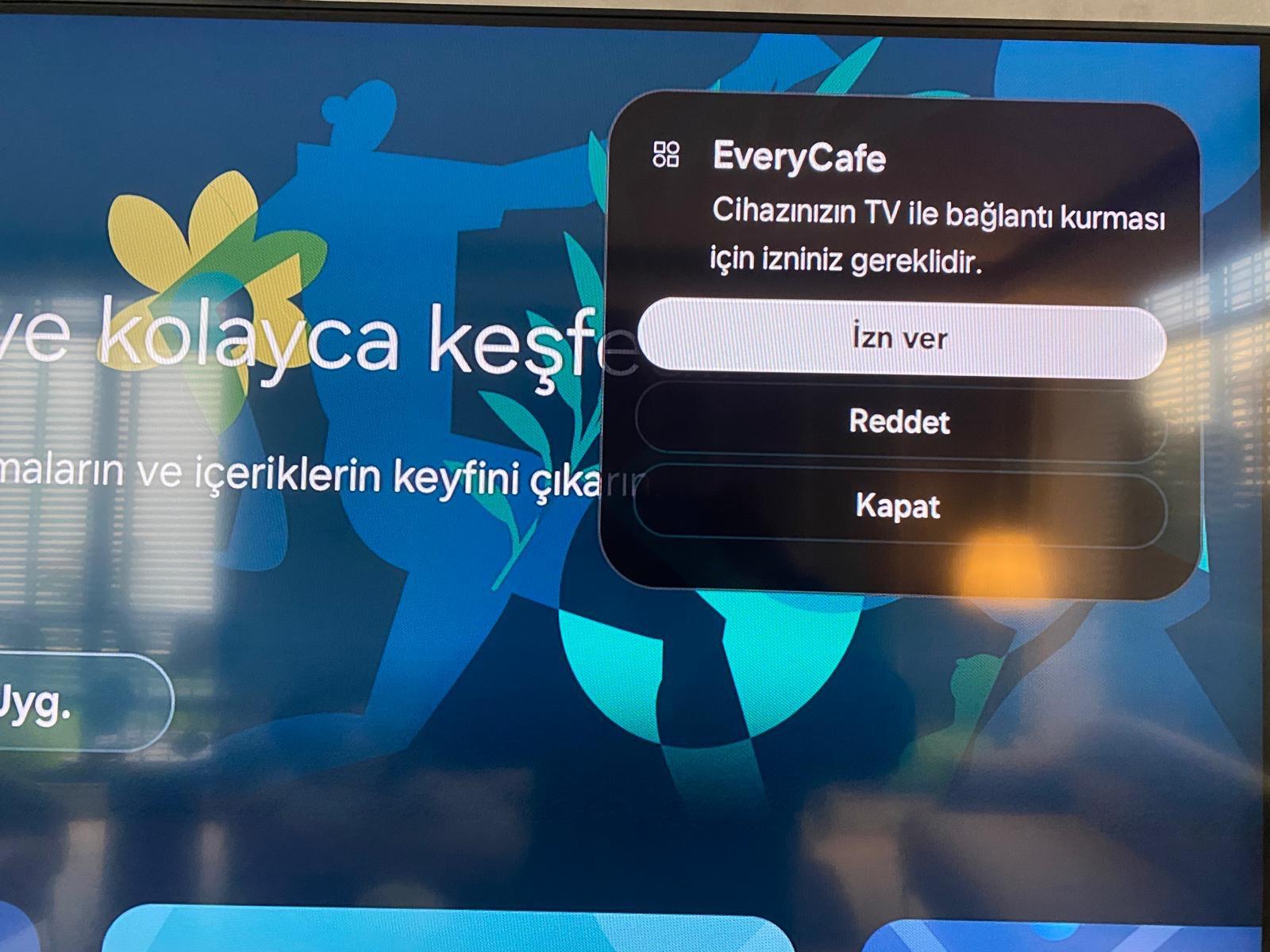
- In EveryCafe Manager, go to Tools > Options > PlayStation > Televisions.
- Give your television a name and enter its MAC address.
- Pair the television with the relevant PlayStation device and save it.
After these steps are complete, when you start a session at the PlayStation desk, your television turns on first, followed immediately by your PlayStation.
In Short
After pairing your PlayStation devices with EveryCafe once and assigning them to the relevant desks, no additional action is normally required during daily operation. EveryCafe automatically manages waking the PlayStation and returning it to rest mode together with desk sessions.